
Running your favorite games on a low-end phone
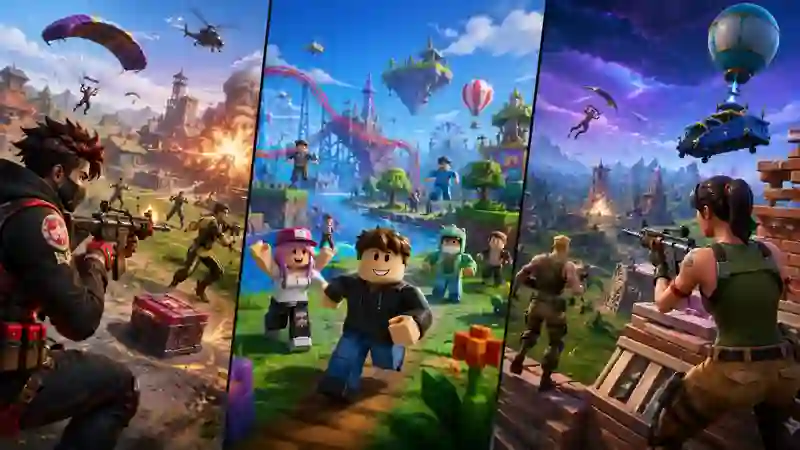
Not everyone has access to a top-of-the-line phone, and the good news is that all three games in the network have specific settings to run better on simpler devices. No adjustment magically swaps out your hardware, but you can get a lot more performance than just running everything on automatic.
Free Fire
Free Fire was designed from the start for entry-level hardware — it runs on devices with just 1GB of RAM. Even so, you can gain extra performance by manually adjusting the graphics settings:
- In the Settings → Graphics menu, lower Graphics Quality to "Smooth" or "Low" instead of leaving it on automatic
- Set the Frame Rate to "Medium" — "High"/"Extreme" is only worth it on devices with a genuine 90Hz/120Hz screen
- Turn off extra effects (Shadows, Ragdoll) in the advanced graphics options, if your device shows these options
- Clear the game's cache from time to time (Settings → Storage) — temporary files pile up and slow down loading
- Close background apps before opening the game; on devices with 1-2GB of RAM this makes a real difference
Roblox
Since Roblox runs experiences created by third parties, performance varies from game to game within the platform — but the app has a global setting that affects all of them:
- Go to Settings (gear icon) → Graphics and turn off "Automatic" mode
- Drag the Graphics Quality slider to the lowest level (1 to 3) on devices with less than 3GB of RAM
- Close other apps before joining: since Roblox loads the experience's world in real time, free RAM matters more here than in the other two games
- If a specific experience is lagging, try another one — optimization depends on whoever created that game inside the platform, not just on your device
Fortnite
Fortnite is the heaviest of the three on mobile, which is why Epic Games launched Performance Mode, designed specifically for devices with 2-3GB of RAM:
- Turn on Performance Mode in Settings → Graphics Quality — it significantly reduces visual effects in exchange for more stable FPS
- If the game still stutters, lower the 3D Resolution on the resolution slider
- Turn off Shadows, Motion Blur, and Anti-Aliasing in the manual graphics settings
- Keep the game always updated — Epic releases optimization patches frequently, and older versions tend to run worse
- Make sure you have plenty of free storage: Fortnite is much bigger than the other two, and updates tend to weigh several GB
To see the official minimum requirements for each game, check each one's dedicated page at /jogos.
Learn more: Free Fire →